
The last post left you with a wave template that works. Conditions are maintained, the Warehouse Process Type has its Automatic Wave Creation indicator on, and the release method is chosen.
None of that moves a single pallet.
Between “the template exists” and “a picker is holding an RF gun” there is a chain of decisions most people never look at — and when a wave releases three hours late, or refuses to take an item that should obviously belong to it, the answer is almost always somewhere in that chain.
This post follows one outbound delivery from the moment it becomes eligible to the moment a warehouse order exists.
Nothing Happens Until a PPF Action Fires
The first thing worth correcting: wave determination is not a background job that sweeps the warehouse looking for work.
After you or EWM create or change a warehouse request, EWM creates a Post Processing Framework action — and that PPF action is what starts wave determination.
This matters for a practical reason. If waves are not being assigned at all, before you touch the condition records, check whether the PPF action is being triggered. A perfectly configured condition table cannot help you if nothing calls it.
And note the wording: created or changed. A change to an existing warehouse request re-triggers determination. That is why an item can quietly land in a different wave than the one you saw yesterday.
Three Times Decide Everything
Once determination starts, EWM tries to find a valid wave template for each item or split item. Then it calculates three times — and these three times are where most real-world wave behaviour actually comes from.
1. Planned completion time (of the warehouse request item). For stock removal, EWM uses the planned date and planned time for departure from the yard. If those are not available, it falls back to the goods issue start dates for outbound deliveries. For internal stock transfers or posting change deliveries, it uses the Warehouse Activities End date/time category.
Read that first sentence again, because it is the honest answer to “how does the system know this order goes on the 6 p.m. truck”: it doesn’t group by truck. It derives the item’s deadline from when the vehicle is planned to leave the yard.
2. Wave completion. The rule is a constraint, not a calculation: the wave completion time of the option being used must not be later than the planned completion time of the item. A wave that finishes after the goods have to leave is not a wave, it is a missed truck.
3. Lock time. The lock time is the point up to which you can still add items to the wave. EWM calculates lock date, lock time, release date and release time backwards from the wave completion.
Then comes the detail that explains a lot of confused tickets:
If any of those calculated times is already in the past, the wave template option is invalid.
Not “the wave releases immediately”. Not “the wave releases late”. The option is simply not usable, and EWM moves on.
The Day-Before Problem
Here is the behaviour that surprises people the first time they hit it.
An item has a planned completion time of 13:00 on day 2. The wave template option specifies a wave completion of 15:00 on day 2.
15:00 is later than 13:00, so the constraint above is violated. EWM does not give up and it does not shift the item. It schedules the wave with a wave completion date of the day before the item’s planned completion date — so 15:00 on day 1.
The item that had to leave on day 2 at 13:00 gets picked in a wave that completes the previous afternoon.
That is not a bug. It is the as early as necessary, as late as possible principle from Post 1 doing exactly what it promised — it just doesn’t feel that way when you are looking at a wave that seems to have appeared a day early.
When the Option Doesn’t Fit, EWM Tries the Next One
A wave template can carry more than one option, and options are time-dependent attributes: cutoff time, release time, picking start and end time, packaging completion time. The system compares the warehouse request’s requirements against the time attributes of each option and picks one.
What happens when the chosen option can’t be used is a small cascade worth knowing by heart:
- The wave already exists → EWM assigns the item to it.
- An exception occurs — say the wave exceeds its capacity → that option is invalid, and EWM tries to create a wave using the next template option.
- The matching wave exists but has already been released → EWM tries the next option and assigns the item to a wave created from it.
That last case has an override, and it is one of the most useful indicators in wave management: Wave Assignment Also Possible After Wave Release. Set it, and an item can be added to a wave that has already gone out the door.
Use it deliberately. It solves the “one more order just came in” problem, and it also quietly breaks the assumption that a released wave is a closed set of work.
Capacity Is Five Limits, Not One
The wave capacity profile caps how much can be assigned to a wave template option, and it does it on five separate dimensions:
- Maximum number of items
- Maximum weight
- Maximum volume
- Maximum capacity
- Number of waves
SPRO → Extended Warehouse Management → Goods Issue Process → Wave Management → General Settings → Maintain Wave Capacity Profiles
Any one of them can invalidate an option and push determination to the next one. When a wave “won’t take” an item that obviously belongs to it, the profile is the first place to look — and specifically, it is worth checking which of the five limits actually tripped, not just whether a profile is assigned.
Where Route Grouping Actually Lives
Waves have no “group by route” checkbox. What exists is more flexible and less obvious: the condition technique determines which template applies, and templates are modelled per business situation.
A real template from a live configuration is named “Domestic Route 01” — template 104, wave type Y214, category Y1, manual release, with exception handling set to leave the item in the wave on bin denial.
That is how route-based waves are built in practice. Not a dedicated function — a naming and condition-record discipline on top of the mechanism from Post 2.
The Rehearsal: Simulating a Release
Before the release is final, you can simulate it.
Wave simulation runs the release process without committing it. Two situations make it worth the extra step: when the release will create and assign a meaningful number of warehouse orders to workers, and when you are troubleshooting warehouse order creation problems that only appear at release time.
You run it manually from the warehouse management monitor. There is also a Customizing activity for it — Define Wave Simulation Settings, under the same General Settings node as the capacity profiles.
This is the step most teams skip and then wish they hadn’t. A wave release is not easily undone; a simulation costs you a minute.
Release: Where Tasks Are Actually Born
Release is the moment the wave stops being a plan. Waves are used to create warehouse tasks and warehouse orders.
Three methods, covered in Post 2 and worth restating in execution terms:
- Automatic — EWM creates a job that releases waves on the release day at the release time, both calculated backwards from wave completion.
- Immediate — released as soon as it is created.
- Manual — someone releases it, typically from the monitor.
The times that drive the automatic case are not entered directly. They are derived, which is why changing a wave template option’s completion time can move a release you thought was fixed.
The Warehouse Order Is Not the Same Thing as the Task
Release creates warehouse tasks. It does not stop there — those tasks are then bundled into warehouse orders, and that bundling is where the Warehouse Order Creation Rules take over.
Two creation categories show what the bundling is actually optimising:
- Consolidation group — all warehouse tasks for one consolidation group are picked together, so everything going to the same customer is held and packed together early. The picking path gets slightly longer; you may skip a repack.
- Pick path — tasks are sorted by pick path and bundled so the shortest paths are covered.
And this is where the wave category from Post 2 returns as a filter on which WOCRs are evaluated. The circle closes: the category you chose when building the template decides which bundling rules are even considered at release.
Merging Waves, and the One Detail You Must Verify Yourself
Plans change. Two waves that should have been one can be merged — under conditions:
- The waves must not yet be released — status I (initial, wave created) or H (hold, wave locked).
- All selected waves must share the same status: either all I, or all H.
Now the interesting part. Which wave survives? Two different rules are in circulation, and they are not equivalent:
| Rule | Which wave the items end up in |
|---|---|
| First selected | The first wave selected — EWM always uses the name of the top row. Waves 123, 456 and 789 merge into 123. |
| Lowest number | The wave with the lowest wave document number. |
In the example everyone reaches for, both rules produce the same answer — which is probably why the contradiction goes unnoticed. They are not the same rule. If you sort your selection differently, or if the wave you clicked first is not the lowest-numbered one, the two descriptions diverge.
The practical takeaway is not “trust this one”. It is: verify the surviving wave number in your own system before you rely on it in a work instruction, because your operators will write down whichever number they see, and a document number that disappears mid-shift is an expensive kind of confusion.
If You Need to Go Further Than Customizing
For anyone building around waves rather than only configuring them, EWM exposes the lifecycle through function modules in the /SCWM/WAVE_MGMT_EXT function group:
/SCWM/WAVE_SELECT_EXT— over 30 selection criteria for waves and wave items/SCWM/WAVE_RELEASE_EXT— triggers a release/SCWM/WAVE_MERGE_EXTand/SCWM/WAVE_SPLIT_EXT— merge and split
These are the modules behind the methods you see on the Wave node of the warehouse management monitor. The architecture guidance is explicit that they suit standalone development — your own reports, for instance — rather than being called from inside modifications of the standard flow.
What This Walkthrough Actually Shows
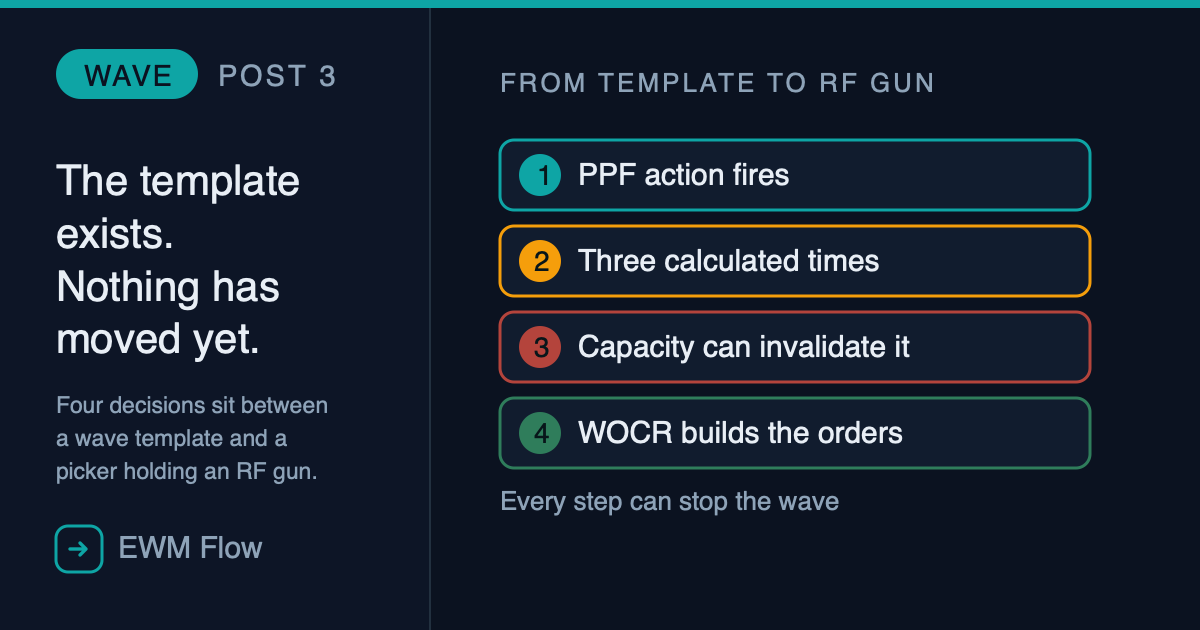
Follow one delivery end to end and the same pattern appears at every step: the wave is not deciding anything on its own. A PPF action starts it, three calculated times constrain it, capacity limits can invalidate it, the condition technique chose its template, and the WOCR decides what the released tasks become.
The wave is the container. Everything interesting happens in what fills it and what empties it.
Next in this series: the case almost nobody documents — waves for production supply, where the staging method decides whether a wave is even possible.
Related Reading
- What Actually Feeds a Wave — the three document types a wave can group, and the anatomy of the template
- Building a Wave Template, Step by Step — the Customizing behind everything this post executes
- Anatomy of a Warehouse Order Creation Rule — what happens to the tasks a wave release creates
- Warehouse Process Type: The Invisible Engine — the switch that starts automatic assignment
Deja un comentario