
Nothing Errored. Nothing Failed. Your Delivery Just Never Arrived.
You post the outbound delivery in S/4HANA. Success. No error, no warning, no red message anywhere.
The warehouse is waiting for it. It isn’t there. You open /SCWM/PRDO and there is nothing to search for — the document does not exist in EWM.
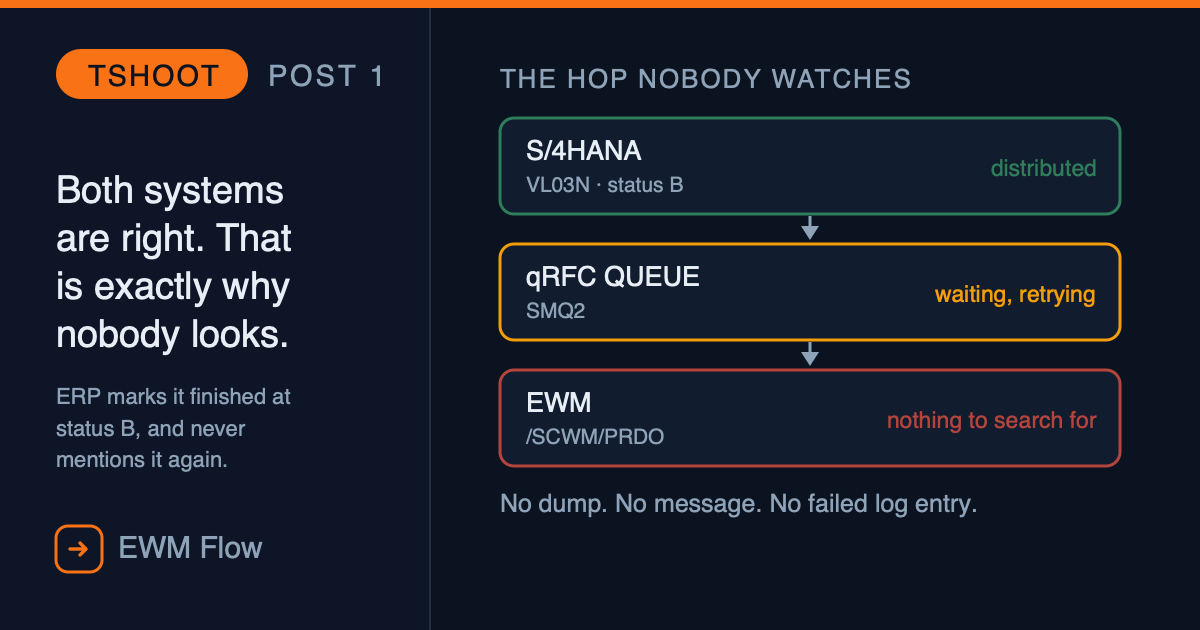
And here is what makes this failure different from every other one you will troubleshoot: there is nothing to investigate. No dump. No error message. No failed log entry. Both systems believe they are correct, and both of them are right: ERP did its job, and EWM never received anything to do.
The document is alive, in transit, waiting in a queue nobody is watching. Until someone looks, it will keep waiting — and the warehouse will keep standing still without knowing why.
This post walks the whole path end to end: which transaction to open at each hop, what the answer tells you, and what to do about it. The order matters — each step rules out a layer, so you never guess.

Step 1 — Confirm the delivery actually left ERP
Open the delivery in VL03N and look at the distribution status on the header.
| Status | Meaning | What it tells you |
|---|---|---|
| A | Relevant | Distribution is relevant but has not happened yet. The problem is upstream of the queue. |
| D | Planned for distribution | Queued for distribution. Still on the ERP side. |
| B | Distributed | ERP considers this finished and will not tell you again. If the document is not in EWM, it left through the queue. |
Status B with no document in EWM is the signature of this problem. It is also why nobody notices: from the ERP side, everything is complete. There is no worklist of deliveries that were distributed but never acknowledged.
Step 2 — Find the queue
The transport between the two systems is qRFC — queued remote function calls. SAP uses them precisely because they are resilient: they preserve sequence, and they retry automatically when an object is locked by another process.
That resilience is also why the failure is quiet. A queue that is retrying looks healthy from a distance.
SMQ2— inbound queues. This is where you look first: SAP recommends inbound queues for EWM, and they are the default.SMQ1— outbound queues, if your system was configured to use them (Integration with Other SAP Components → Extended Warehouse Management → Basic Settings for EWM Linkage → Define Queue for Transfer to SAP EWM).
The queue name identifies the document — something like DLWSB7GCLNT5001000055701. You can match it against the delivery you are chasing.
You may not need Basis access. The same queue is visible from the EWM side, in the message queue node of the warehouse management monitor (/SCWM/MON). Many functional consultants spend years escalating to Basis without knowing they can see the queue themselves.
Step 3 — Read what the queue is actually telling you
A stuck queue shows up in one of three states, and they need completely different responses.
A concrete error message
Double-click it. If a window opens, you get the full text plus message class and number, which is what you need to search for notes.
If no window opens, look the message up in table T100: copy the text, replace any document numbers with *, and add * at the end. That gives you the full message, its class and its number.
“Error during follow-up action; See application log”
This generic text means the real error was written somewhere else. Open SLG1 and look around the timestamp of the queue, matching on the same document number, queue name or userID.
If SLG1 is empty, that is a finding, not a dead end. Check whether logging is switched on for that warehouse in /SCWM/ACTLOG. A system that is not logging will keep hiding the cause of every future failure too.
RETRY — the one that fools people
The status text reads “Command to tRFC/qRFC: Execute LUW again.” The system has decided the problem might be temporary — typically a lock — and that running later will fix it.
Sometimes that is true. But a queue can also sit in RETRY because of a real error that cannot be displayed in SMQ2 or SLG1 at all. In that case the queue has to be debugged. RETRY is not a status you can wait out indefinitely — if it has been retrying for hours, treat it as stuck.
Step 4 — The authorisation case almost nobody checks
This one deserves its own section, because it explains a symptom that otherwise makes no sense: the same queue fails for one user and works for another.
Queues in SMQ2 run with the authorisations of the user who posted them — not yours, and not a technical background user.
So when many WMQF* queues are stuck for one particular userID, the cause is likely authorisations. The check has a specific order:
- In
SMQ2, find the stuck queue and note the userID. - Run the queue with Execute LUW (F6). It runs under that user, so the system checks that user’s authorisations. Wait for it to fail again with the same error.
- Open
SU53and switch it to display the authorisation check for that userID, not your own. - Read the failed check, and add the missing authorisation to the user who posts the queues.
Step 2 matters: SU53 shows the most recent failed check. Running the LUW first is what makes the relevant failure the most recent one.
Step 5 — Getting the document moving again
Once you know the cause, there are three levers, in increasing order of force. Use the least forceful one that works.
Re-execute the queue. If you fixed the underlying cause — customizing, master data, an authorisation — the queue can simply be run again from SMQ2.
Reset the distribution status. An LE delivery distributed to EWM sits at status B, and while it is at B no changes can be made to it. The function module /SPE/DELV_RESET_DIST_STATUS (via SE37) resets it to A (Relevant) or D (Planned for Distribution) so it can be distributed again. Pass the delivery in IT_DELIVERY_KEYS and the target status in IV_NEW_DISTSTAT.
Queue content editing. SAP ships a documented way to edit the payload of ERP inbound queues — and is unusually blunt about when to use it:
“Queue editing should only be the last measure to solve failed queue entries. Before you take queue editing into consideration, check if the queue failures can be resolved by other measures.” — SAP How-To Guide, Queue Content Editing
The same guide lists what those other measures usually are, and it doubles as a diagnostic checklist:
- Missing or faulty customizing
- Missing authorisations
- Deviating validation logic between ERP and EWM — tolerance checks, best-before or shelf-life checks, address validations
- Missing master data
That third one is worth sitting with. Both systems can be individually correct and still disagree — ERP accepts a date that EWM rejects, or an address that fails EWM’s validation. Nothing is broken in either system. The queue is simply the first place where the disagreement becomes visible.
Note also the boundary: editing is only available for ERP inbound queues, only for RFC functions delivered by SAP, and not for functions that have been enhanced with custom parameters.
Step 6 — Confirm the document actually arrived
Do not close the ticket on a green queue. Go and look:
/SCWM/PRDO— the outbound delivery order exists in EWM./SCWM/PRDI— the equivalent for inbound./SCWM/MON— the warehouse request is visible, and the follow-on documents you expected were created.VL03N— distribution status back to B, this time with a document on the other side to match it.
A cleared queue means the message was delivered. It does not by itself mean the document was created the way you wanted it.
The shape of this problem
Most troubleshooting starts from an error. This one starts from an absence — and absences are much harder to notice, because no monitor is designed to alert you about a document that was never created.
Which is why the habit matters more than the fix: when a document is missing on one side, check the queue before you check anything else. It is two clicks, it is visible from either system, and it rules out an entire class of causes in seconds.
In the next post in this series, we’ll take the other half of the problem: the failures that do announce themselves — dumps and error messages — and how to read the one line in a short dump that tells you which component is responsible, and therefore whether the problem is even yours.
Related Reading
- Your Stock Changed State and Nobody Posted Anything — the other side of the ERP–EWM boundary: what happens to stock state once the document does arrive.
- Warehouse Process Type: The Invisible Engine — once the delivery is in EWM, this is what decides how its tasks behave.
Part of the Troubleshooting series
First post in the series
Deja un comentario